Start with a draft, not an automatic submission
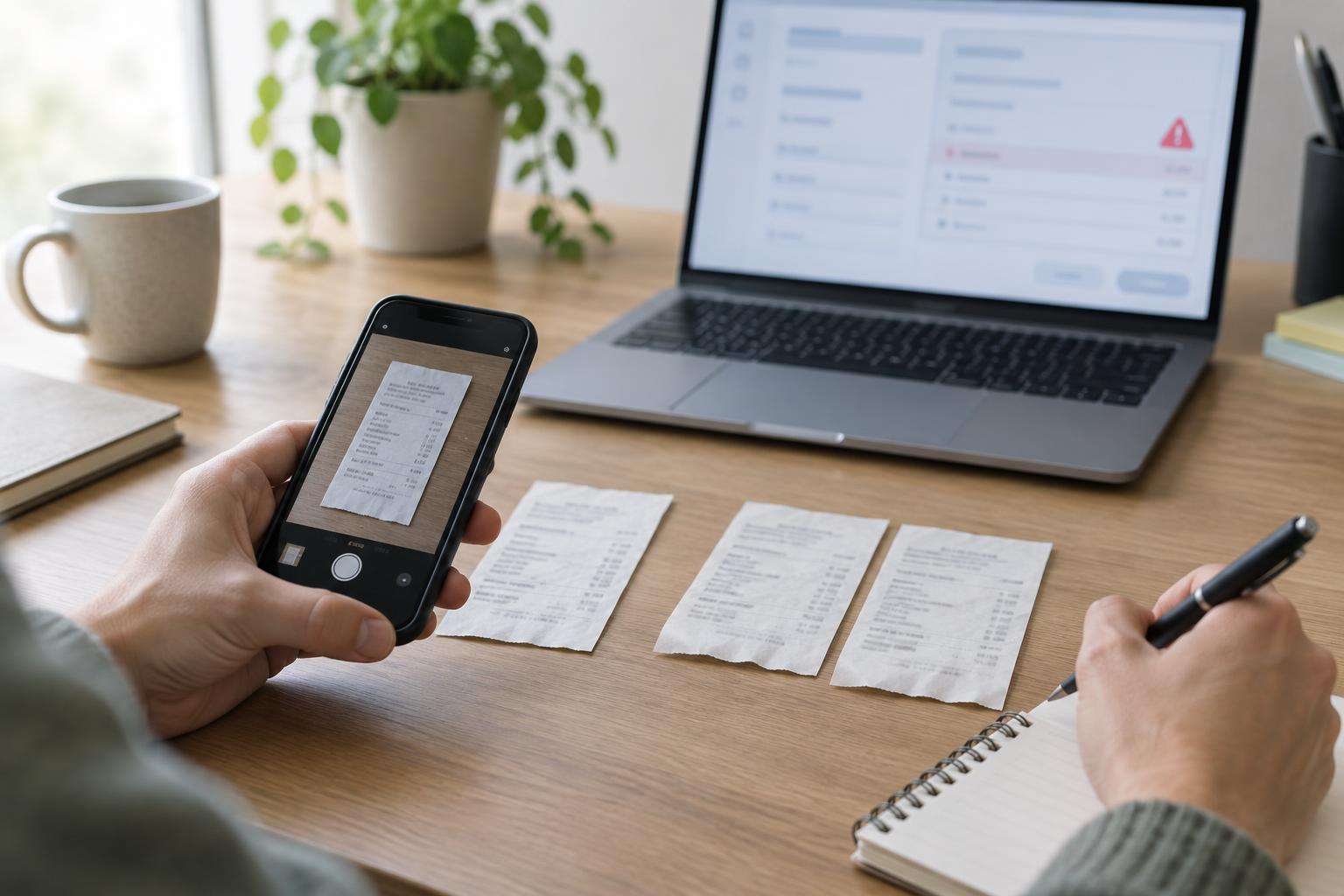
A photographed receipt can save someone from typing an expense entry, but it should not become a finalized record without review. Photos may be blurred, totals may be mistaken for subtotals, and a merchant name on a receipt may differ from the name on a card statement. A useful automation therefore creates a draft with the original image attached, extracted fields beside it, and clear flags for anything uncertain.
Define the fields your team actually needs before choosing an extraction tool. A small set might include merchant, transaction date, currency, total, tax, payment method, expense category, project, and a short note. Mark which fields come from the receipt and which require a person’s judgment. For example, a receipt may show the total, but it cannot reliably decide which client project benefited from the purchase.
Capture and extract the receipt
Ask people to photograph the whole receipt in even light, with its edges visible and the text in focus. If a receipt has information on both sides or spans several pages, keep those images together. Preserve the original file even if you also straighten or crop a copy for text recognition. The original makes it easier to resolve extraction mistakes later.
A basic pipeline accepts the image, reads its text with optical character recognition, and maps that text into the draft fields. An AI model can help interpret messy layouts, but its output should be treated as a proposal rather than a fact. Instruct the extraction step to leave a field blank when it cannot find supporting text and to return the text it used for each value. A simple rule can then check whether required fields are present and whether the proposed total and date look plausible.
Keep extraction separate from categorization. First capture what the receipt says; then suggest an expense category using your own category list. This makes it easier to see whether an error came from reading the image or from deciding how to classify the purchase.
Check for duplicates without relying on one exact match
Duplicate checks should compare a new draft with both submitted expenses and other pending drafts. An exact image-file match can catch an identical upload, but the same receipt may be photographed twice. Compare several signals: merchant name, transaction date, currency, total, and, where available, a receipt or transaction number. Normalize harmless differences, such as capitalization, spacing, and common merchant-name variations, before comparing text.
Use two levels of flagging. A strong match, such as the same receipt number plus the same total, deserves a prominent warning. A possible match, such as a similar merchant and amount on a nearby date, should invite a closer look rather than block the entry outright. Shared meals, repeated purchases, and corrected receipts can look similar without being duplicates. Show reviewers which fields matched and link to the existing entry so they can decide.
Also account for currency and tax presentation. Two amounts should not be treated as equal if their currencies differ, and a subtotal on one draft should not be compared as though it were the final total on another. When key fields are missing, report that the duplicate check is limited rather than silently treating the draft as unique.
Give reviewers a short, useful checklist
A review screen should place the receipt image next to the proposed entry. Ask the reviewer to confirm the merchant, date, currency, final total, and any fields needed for the team’s records. Highlight low-confidence or missing values, along with duplicate warnings. The reviewer can then correct the draft, add context such as a project or purpose, and either approve it for the usual expense process or set it aside for follow-up.
Record corrections without overwriting the original extraction. That history helps explain why an entry changed and reveals recurring problems, such as a particular receipt layout that repeatedly confuses the total. If mistakes cluster around one field, adjust its validation or send it directly to human review instead of making the entire workflow more complicated.
Protect receipt data and test the workflow gradually
Receipts may expose names, card fragments, locations, or purchase details. Limit access to the images and drafts, send them only to tools your team has chosen to use for this purpose, and decide how long to retain the files. Avoid copying full receipt text into logs or notifications when a draft link and a brief status will do.
Begin with a small set of varied receipts and inspect each stage: image quality, extracted fields, category suggestions, duplicate flags, and the reviewer’s final edits. Include awkward examples such as faded print, multiple totals, and repeat purchases. The aim is not to make every receipt pass automatically. It is to reduce routine typing while making errors and possible duplicates easy to spot before an expense is submitted.